


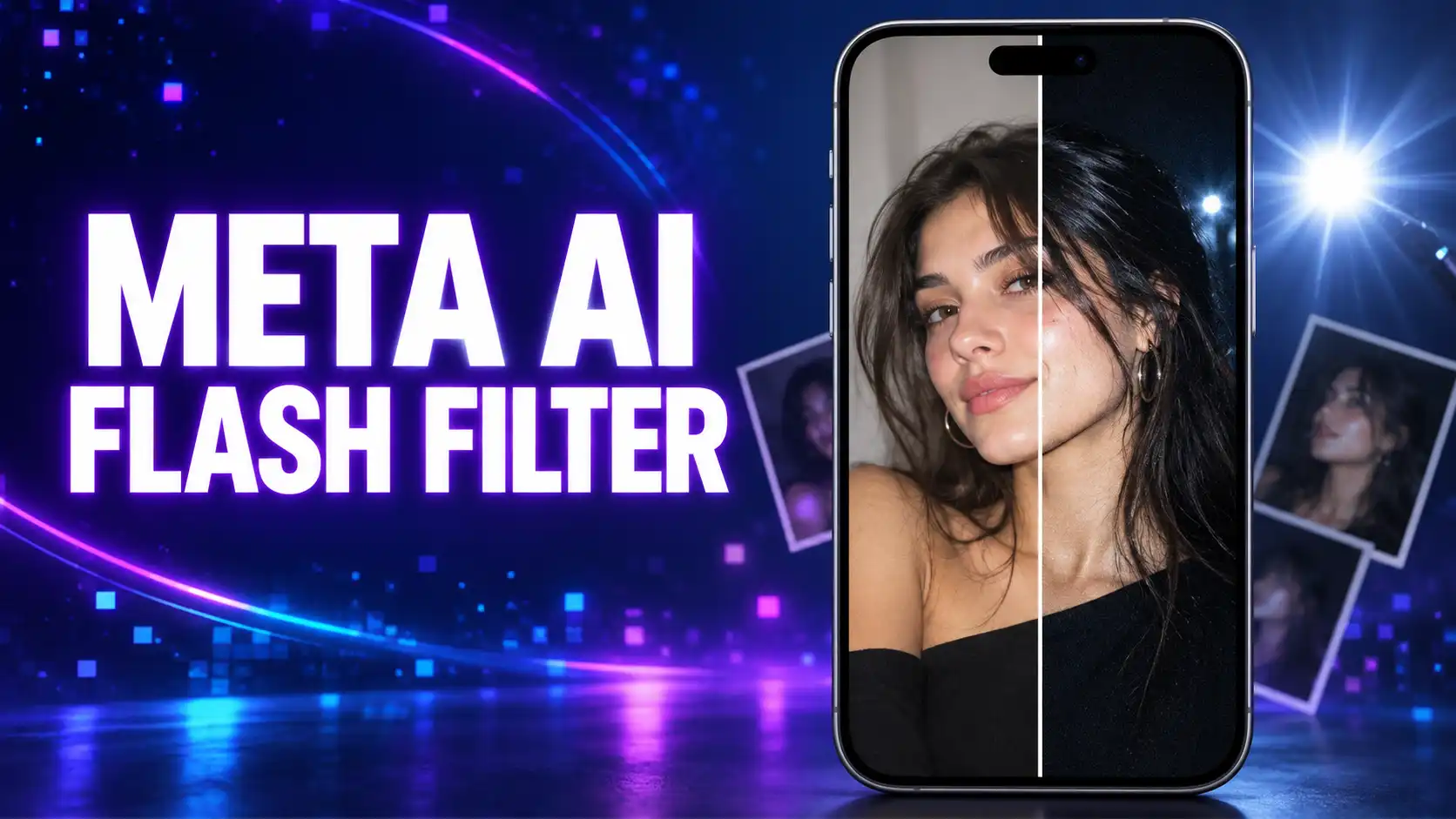
The Meta AI flash filter is an AI-powered Instagram Stories effect that gives an ordinary photo the bright subject, darker background, rich contrast and slightly retro look of direct-flash photography. To use it, add a photo to your Instagram Story, open the effects or Meta AI editing options, and select Flash or Night Flash. The exact name and location can vary by account and app version.
This is not a conventional color preset. Instagram uses generative AI to reinterpret the image, so check the face, skin tone, hands, clothing, text and background for unexpected changes before sharing it.
Last checked: September 9, 2026
Meta AI Flash Filter at a Glance
| Detail | What to know |
|---|---|
| Where it appears | Instagram Stories photo editor |
| Possible names | Flash, Night Flash or an option inside Restyle/Create with AI |
| Main visual style | Direct camera flash, vivid color, deep shadows and a retro digital-camera mood |
| Type of edit | Generative AI transformation, not only a brightness adjustment |
| Main limitation | It may alter facial or background details |
| Availability | Varies by country, account, device and app version |
What Is the Meta AI Flash Filter?
The Meta AI flash filter analyzes the subject, lighting and composition, then creates a new version intended to resemble a photograph taken with strong on-camera flash. It usually brightens the subject, darkens the surroundings and adds punchy contrast, saturated color and a disposable-camera mood.
Meta expanded this idea in July 2026 when it announced more than 30 AI-powered Instagram Story effects. The newer collection includes Night Flash, while some users may still see Flash. Meta says its new effects use the Muse Image generation model to interpret a scene before editing it. See Meta’s Muse Image announcement for the technical background.
That explains why two people may search for the same Meta AI flash filter but see different labels or menus.
How to Use the Meta AI Flash Filter on Instagram
Use the latest Instagram mobile app, then follow these steps:
- Open Instagram and tap Your Story, or swipe right from the main feed.
- Take a new picture or select a photo from your camera roll.
- Open the effects carousel, Browse effects, Restyle or Create with AI. The wording depends on your app version.
- Look for Flash or Night Flash and tap its preview.
- Wait while Meta AI generates the edited image. This can take longer than applying a standard filter.
- Compare it with the original. Regenerate an unnatural result or use the custom prompt below before sharing it.
Do not confuse it with the lightning-bolt camera control. That control activates the phone’s light while taking a picture; the AI effect generates a new look afterwards.
Where to Find Flash, Night Flash or Restyle
Instagram releases features gradually, so the same interface is not visible to everyone.
| What you see | What to do |
|---|---|
| Flash in the effects list | Select it and wait for the AI preview |
| Night Flash in the AI effects carousel | Tap the thumbnail after choosing a Story photo |
| Restyle | Open it and search the available styles for Flash or a similar lighting effect |
| Create with AI | Open the AI effects or enter a custom flash-style prompt |
| A prompt field below the effects | Describe the lighting and identity details you want preserved |
| No AI option | Update Instagram and check again later; the feature may not have reached your account or region |
The Instagram Help Center also explains how to use Restyle on a Story, although buttons can change during a rollout.
Why It Is More Than a Normal Instagram Filter
A normal filter adjusts existing pixels. A generative effect interprets the image and creates new visual information.
| Standard photo filter | Meta AI flash effect |
|---|---|
| Applies predictable tonal or color adjustments | Generates a new interpretation of the photo |
| Usually keeps facial structure unchanged | May reconstruct facial details |
| Produces a similar result each time | Can produce a different result when regenerated |
| Processes the photo like an editing preset | Uses scene understanding and an image-generation model |
The Meta AI flash filter therefore tries to recreate how the whole scene might look under direct flash. It is a consumer example of the technology behind modern generative AI systems. It is different from agentic AI, which can plan and perform multiple actions toward a goal.
Why Can the Flash Filter Change Your Face?
Because the effect generates pixels instead of adding a transparent overlay, it may redraw parts of a face. Users have reported changes to facial shape, skin tone and other details.
Changes are easier to notice in:
- Dark, blurred or low-resolution photos
- Side profiles or partly covered faces
- Group pictures with several small faces
- Photos containing reflective glasses or detailed patterns
Coverage of the viral effect documented unexpected facial and skin-tone changes. Not every result changes a person’s appearance, but every output deserves a quick inspection.
If exact appearance matters, use Instagram’s manual controls or a non-generative editor.
How to Get a Better, More Natural Flash Result
Start with a sharp photograph in which the face is clearly visible. A clean source gives the AI less missing information to invent.
For more consistent results, choose a single subject and a simple background. Avoid heavily filtered or overexposed images, keep important text and small accessories away from the edges, and compare the eyes, teeth, hairline, fingers and clothing patterns with the original. Regenerate obvious distortions and retain the unedited photo.
Custom Prompt for a Flash-Style Photo
If the preset is missing but your Story editor offers a custom AI prompt, try this:
Apply a realistic direct on-camera flash look. Brighten the subject while keeping the background naturally dark, add controlled contrast, crisp detail, subtle film grain and slightly warm highlights. Preserve the person’s facial features, skin tone, body shape, hairstyle, clothing, accessories and the original composition. Do not add or remove people or objects.
These instructions may reduce unwanted changes, but they cannot guarantee a pixel-identical face. For a Y2K look, add “early-2000s compact camera, subtle grain and candid party aesthetic.” For a more natural portrait, add “soft flash falloff, realistic skin texture and controlled highlights.”
Meta AI Flash Filter Not Showing? Try These Fixes
| Problem | Likely reason | What to try |
|---|---|---|
| Flash is absent from effects | Staged rollout or different feature name | Search for Night Flash and check Restyle/Create with AI |
| No Meta AI editing options | Account or regional availability | Update Instagram, sign out and back in, then wait for the rollout |
| Effect stays on loading | Weak connection or temporary service issue | Switch networks, close Instagram and retry later |
| App closes during generation | Old app build, low storage or temporary cache issue | Update the app, free storage and restart the phone |
| Face looks different | Generative reconstruction | Use a clearer source, add preservation instructions or choose a normal filter |
| Result is too bright | AI interpreted “flash” too strongly | Add “controlled highlights, no blown-out skin” to a custom prompt |
| Every generation looks different | Normal variation in generative AI | Save the best version and do not expect an identical rerun |
On Android, clearing Instagram’s cache may help with a stuck interface. On iPhone, restart or reinstall the app after saving any Story drafts and confirming your login details.
Avoid unofficial “Meta AI flash filter APK” files and never enter your Instagram password on an unknown editing site. A missing feature is usually a rollout issue.
Privacy, AI Labels and Responsible Sharing
Treat any photo submitted to an AI editor as personal data. Avoid sensitive documents, private locations or images of another person without permission. Be careful with children’s photos and pictures revealing school names, addresses or vehicle numbers.
Meta may display AI info on content it detects as AI-generated or edited. The label’s location can vary. Meta explains this in its AI-generated content labeling guide.
Before publishing, also check whether the edit creates something misleading. AI can produce a polished image while leaving incorrect hands, text, reflections or background objects. TechyTune’s guide to AI slop explains why human review matters even when generated content looks convincing at first glance.
Is the Meta AI Flash Filter Worth Using?
The Meta AI flash filter is useful for creating a dramatic Story image without learning manual editing. It can turn a flat indoor picture into a striking night-flash portrait in a few taps.
Its weakness is consistency. Choose a conventional filter when accurate facial features, product colors, clothing details or documentary authenticity matter. Treat the AI effect as a creative restyle, not a faithful correction.
Use it for experimentation, inspect every result and keep the unedited photo. That approach gives you the visual appeal of the trend without mistaking an AI-generated interpretation for a simple lighting filter.
For more explainers on new AI features and how they work, visit TechyTune’s artificial intelligence guides.

Comments are closed.