


An AI task manager helps you capture, sort and finish tasks with the help of AI. Most apps in the category stop after the first two steps: they turn a sentence into a to-do item and suggest when to do it. The reply or the post itself is still yours to write.
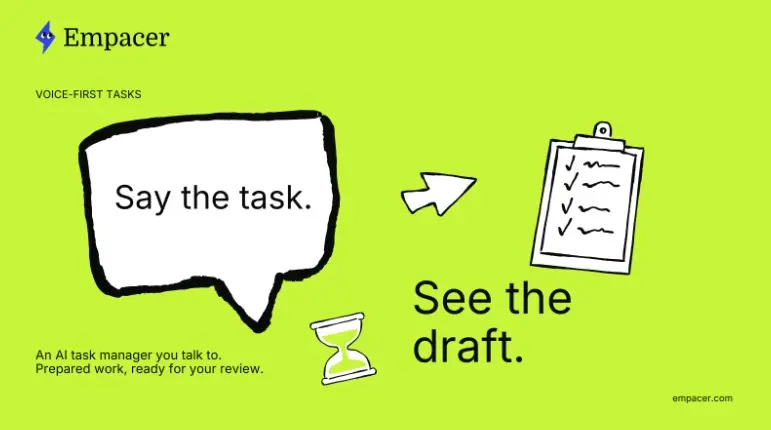
Empacer takes a different approach. It’s a voice-first business assistant for small business owners: you hold a button, say the task the way you’d tell an employee, and get back a prepared draft to review. Each task and file then sits in one task history with its status.
This article covers what to expect from an AI task manager, then follows one task through Empacer from the moment you speak to the moment it’s done.
What an AI task manager is, and where most of them stop
The category splits into three groups, and the differences matter more than any feature list.
- AI to do list apps. You type or speak a task, and the app sets a due date, groups it with similar items and suggests an order. Good for planning, but each item is still a line of text waiting for you.
- AI voice notes apps. You record a thought, and the app transcribes and summarizes it. Handy for capturing ideas on the move. Turning the note into a sent email is still a separate job.
- AI task assistants. You describe the task, and the assistant prepares the result: the draft reply, the caption, the summary of a document. You review it and approve.
For a small business owner who serves clients all day, the third group clears the most work. You already know what needs doing. What’s missing is a quiet half hour at a desk to do it.
So what counts as an AI task here? Anything that ends in a piece of text or a file: a customer reply, a social post, a quote, a follow-up email, a summary of an invoice or a report, a plan for the week. Jobs that need your hands, a phone call or your judgment in a dispute stay with you.
Voice first: hold the button and talk
Voice first means speaking is the default way to give a task, and the screen is mostly for checking results. In Empacer you hold the button and talk. No perfect prompt is needed. “Lena wants to move her dog’s grooming from Saturday to next week, draft a reply offering Tuesday or Thursday morning” is enough to start.
If you’re somewhere you can’t speak, type the same sentence. The plus button attaches a photo or a file, such as a picture of a handwritten order or a supplier’s price list, so the assistant works from the source.
Empacer turns what you say into text to work on the request and doesn’t keep the audio. That’s worth knowing if you dictate tasks at a counter with customers around.
Voice notes can stay short because of setup. Three short questions about your business, answered by voice or text, give the assistant its starting facts, and those facts live in About you, its business memory. A dog groomer who has added a price list can say “quote Lena for a full groom on a large dog,” and the draft uses the stored price. If the price isn’t there yet, say it in the same voice note.
The home screen: a short list of ready tasks
Most task managers open on an empty list or an overflowing one. After setup, Empacer opens on a short list of tasks, ordered to fit your kind of business. On the site, that list shows a first-week plan and a set of social posts waiting for your OK. Each item arrives with the work already drafted, so the list tells you what to check next.
Anything not on the list falls under what the site calls “the rest on request.” You say it out loud, and the assistant takes it from there. A handyman can work through the list over coffee and add a new task from the van: “Write a quote for replacing Ruth’s bathroom tap, parts plus one hour of labor.”
One task at a time, from voice note to draft
Empacer’s own guide to a single task has six steps. They also make good practice for any AI task assistant.
- Start with what didn’t get finished today. A client reply, tomorrow’s post, an unsent invoice.
- Pick one task, not the whole backlog. Clearing one item fully beats starting five.
- Tell Empacer what happened. Speak naturally. A messy sentence with the facts in it works better than a tidy one without them.
- Add the context it needs. Your business, what happened, when it matters, what you need done.
- Answer its questions. If something is missing, the assistant asks.
- Review what it prepared. You get a draft plus any open questions, ready for review. Edit, then approve.
Empacer sums up the idea in two short lines: “One task explained. One result prepared.” In practice, a florist who says “Carla’s wedding order went from twelve centerpieces to ten, update her and confirm the new total” gets a draft message back. If the price per centerpiece isn’t in business memory yet, add it to the same voice note so the total is right.
To see every screen in order, there’s a step-by-step walkthrough on Empacer’s site that covers setup, ready tasks, connections, review, failures and history.
Notifications and result cards
You don’t have to watch the app while it works. A push arrives when work is ready or when the assistant needs a detail, so you can finish with the client in front of you and check later.
The finished work shows up as a result card. Change a line by hand, say what to fix (“shorter, and mention we’re closed Monday”), approve it as it stands, or decline and discard the draft if it went the wrong way. A reply or a post waits on its card for your OK. A sent message can’t be recalled from the app, so the card is where names, dates and amounts get their final check.
When a task stops: failure cards
Tasks sometimes stall: a photo is unreadable, a connection was removed, a detail is missing. A plain to-do app would leave the item unchecked and say nothing. Empacer shows a card that explains what broke, what’s already saved, whether anything was sent, and the one step that gets the task moving again.
The example on the site reads: “Couldn’t read the price list. The photo is blurry. Stopped at step 2 of 4. Nothing was sent, nothing to undo.” The card offers two ways forward: take over with “I’ll do it myself,” or retry with “Take a new photo.” You see at a glance that no customer got a half-finished message, and you pick the faster fix.
Task history: every task and file in one place
Your task history sits at the top of Home. It’s a complete log of your tasks and their current status, so you can see what’s waiting for you, what’s done and what stopped. Finished files open from their result card, and you can share them to any app on your phone, for example to forward a finished quote through the messenger you already use.
That gives you one place to answer “did I send that?” instead of searching notes, screenshots and sent folders across several apps.
AI task manager or classic to-do list
The two tools overlap less than their names suggest.
| Classic to-do list | Empacer | |
|---|---|---|
| Capturing a task | Type or dictate a line | Hold the button and talk, type, or attach a file |
| What happens next | The item waits for you | A draft or file arrives as a result card |
| Context | Whatever you wrote in the item | Your business details from About you |
| Missing details | Not tracked | The assistant asks |
| Sending | You do it in another app | Through a connected tool, after your OK |
| Record | Checked or unchecked | Task history with status |
A to-do app still fits personal errands and jobs only you can do, like picking up supplies or fixing a leaking sink. You can keep both: the list for hands-on jobs, the assistant for anything that ends in a message, a post or a document.
FAQ
What is an AI task manager?
An AI task manager is an app that uses AI to capture, organize or complete your tasks. Some only sort and schedule items on a list. Others, such as voice-first business assistants, prepare the actual result, like a reply or a post, for you to review and approve.
What are some AI tasks a small business can hand off?
Customer replies, social posts and captions, quotes, follow-up emails, document summaries and a weekly plan are good candidates. They come up often and depend on facts and a tone you already have. Keep complaints, disputes and anything that needs a phone call for yourself.
Can I type instead of talking?
Yes. You can type the request, or attach a photo or a file with the plus button. Voice is faster on the move, and typing works when you’re somewhere you can’t speak.
Do I need to connect my tools first?
No. Empacer starts working right after onboarding, and posts, replies and documents can be prepared without any connection. When a task needs to go out through your calendar, email or another tool, it asks to connect that one tool at that point.

Comments are closed.